Domain trust failures and the 40-minute replication delay that wasn’t
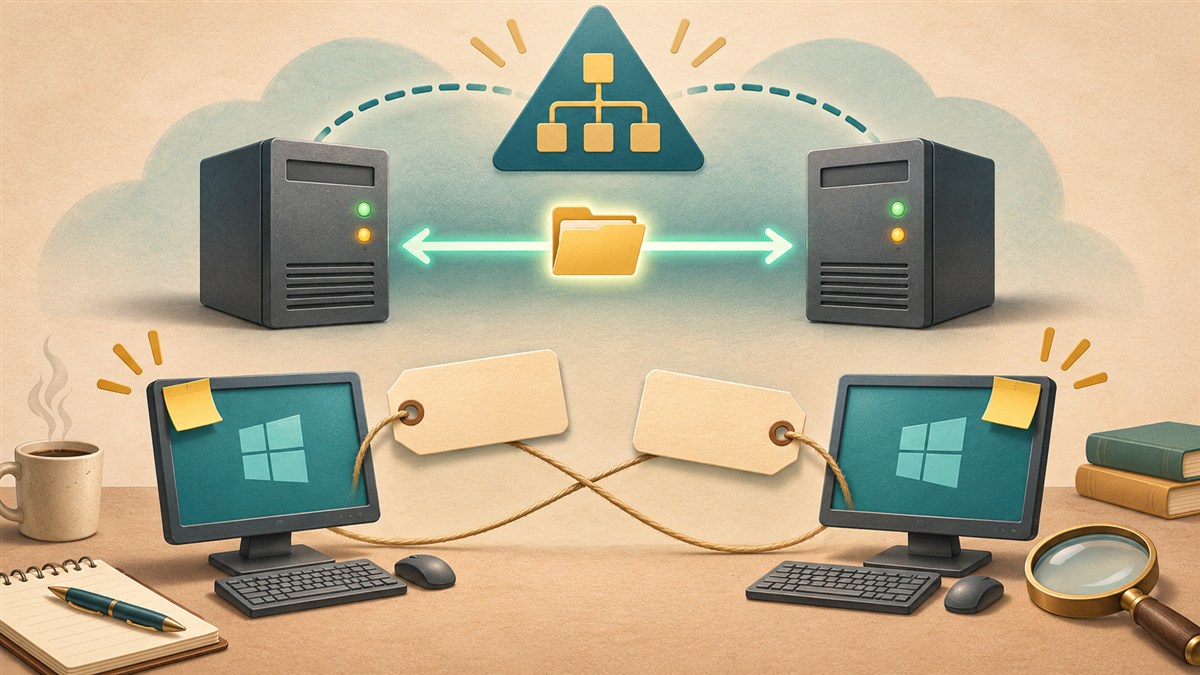
So today we had two Windows 11 computers report a failed domain trust relationship within two days. One had already been rebuilt; I wanted to find out why the other had failed before we ended up rebuilding our way around a bigger problem.
The awkward bit was that the remaining machine had disappeared from our ScreenConnect instance, and we didn't have a usable local administrator account. It was still in SCCM, and still had the CrowdStrike agent installed, so there were other routes to investigate. Before going down those, though, I wanted to check Active Directory replication.
Then repadmin showed a largest delta of roughly 40 minutes. That looked rather more interesting than it eventually turned out to be.
I've anonymised the examples below: the domain controllers are dc01.example.com and dc02.example.com, and the affected computer accounts are PC-A and PC-B.
First, were the domain controllers agreeing?
The familiar error is:
The trust relationship between this workstation and the primary domain failed.A computer has its own account password, separate from the user's password. If the local copy and the domain's copy no longer agree, its secure channel can fail. Microsoft describes that relationship in its domain trust repair guidance. The message alone doesn't tell us what changed the password.
For the initial replication checks, run these from an elevated PowerShell window on a domain controller, replacing the example DC names:
repadmin /replsummary
repadmin /showrepl * /errorsonly
dcdiag /test:replications /s:dc01.example.com /q
dcdiag /test:replications /s:dc02.example.com /q
Both DCs reported zero replication failures, showrepl reported no errors, and the individual dcdiag replication tests passed. An earlier attempt at the enterprise-wide dcdiag command had an invocation problem; that wasn't evidence of failed replication.
The /q option prints errors only, so a quiet result is what you're hoping for. Microsoft's DCDiag reference explains the switches and what the Replications test checks.
Next I compared the affected computer accounts on both DCs. Here's a quick PowerShell:
Import-Module ActiveDirectory

$Computers = 'PC-A', 'PC-B'

$Results = foreach ($DC in (Get-ADDomainController -Filter *)) {
    foreach ($Computer in $Computers) {
        Get-ADComputer -Identity $Computer `
            -Server $DC.HostName `
            -Properties PasswordLastSet, whenChanged `
            -ErrorAction Stop |
        Select-Object @{
            N = 'DC'; E = { $DC.HostName }
        }, Name, PasswordLastSet, whenChanged
    }
}

$Results | Format-Table -AutoSize
My first attempt tried to pipe directly from a foreach statement into Format-Table. PowerShell wasn't impressed. Collecting the results first fixes that; -ErrorAction Stop also makes a failed account lookup visible rather than letting an incomplete table look reassuring.
The important comparison here is PasswordLastSet. whenChanged is useful context, but Microsoft documents it as a non-replicated attribute, so don't require that column to match across DCs.
Our password timestamps agreed across the two controllers. One account last changed on 23 October; the other changed around lunchtime on 5 November.
A much simpler suspect
At this point I wondered whether we'd accidentally reused the wrong computer name during a machine replacement cycle. That would explain an existing machine suddenly losing trust, followed by another failure as we rebuilt the next one.
If a domain join is permitted to reuse an existing computer account, it updates that account's machine password. The original Windows installation can then be left holding a different password. Microsoft's Directory Services team describes this exact duplicate-name scenario, including the account-reuse security checks involved.
The older timestamp initially seemed to argue against a recent rebuild causing the problem. Then I remembered that 23 October was when our colleague had last been in, and I didn't think anyone had used that machine over the holiday. A failure discovered today needn't have started today.
That made the theory plausible, but at that stage it didn't prove it. The older change was at about 01:19, which could also have been an ordinary machine-password change. Timestamps don't identify which physical device was using an account.
To investigate that further, compared the rebuild records and, where auditing and retention allow it, Security event 4742 for the computer-account changes. Microsoft's secure-channel data collection guidance is a useful starting point. Those were follow-up checks; the timestamps alone hadn't settled it.
About that “40-minute replication delay”…
I still wanted to know why the replication summary showed such a large delta.
The key distinction is that largest delta measures time since successful replication; it doesn't measure how long a new change takes to arrive. Microsoft's repadmin /replsummary reference describes sorting by the longest time since the last successful replication.
That isn't a number to ignore in every environment. It just isn't, by itself, proof that every change is sitting around for 40 minutes.
We checked the site membership and the individual replication results:
Get-ADDomainController -Filter * | Select-Object HostName, Site

Get-ADReplicationSiteLink -Filter * |
    Select-Object Name, ReplicationFrequencyInMinutes, Cost, SitesIncluded

repadmin /showrepl dc01.example.com
repadmin /showrepl dc02.example.com
Both DCs were in the same AD site. The site link's 180-minute interval therefore didn't explain change propagation between these two controllers: that setting is for replication between sites.
Within a site, the default change-notification delay is 15 seconds, with three seconds between notifications to additional partners. Those are notification timings, not a guaranteed end-to-end stopwatch result. Microsoft documents the defaults here.
The useful next step was to create something and watch it arrive.
Create, observe, then delete
Here's the test, combined into one block so the stopwatch also runs while the commands execute. It uses the domain's configured Computers container. You can replace $Path with an existing test OU instead.
Run it in PowerShell on a DC or an administration machine with the Active Directory module. Use two writable DCs in the same domain, replace both example hostnames, and use an account with permission to read the directory and create and delete a container at the chosen path. This creates a real temporary AD object.
Import-Module ActiveDirectory

$SourceDC = 'dc01.example.com'
$TargetDC = 'dc02.example.com'
$Path = (Get-ADDomain -Server $SourceDC -ErrorAction Stop).ComputersContainer
$Name = "ReplicationTest-$([guid]::NewGuid().ToString('N'))"
$Found = $false
$Timer = [Diagnostics.Stopwatch]::StartNew()

New-ADObject -Name $Name `
    -Type container `
    -Path $Path `
    -Server $SourceDC `
    -ErrorAction Stop

$SourceObject = Get-ADObject -LDAPFilter "(cn=$Name)" `
    -SearchBase $Path `
    -SearchScope OneLevel `
    -Server $SourceDC `
    -ErrorAction Stop

if (-not $SourceObject) {
    throw "Test object not found on the source DC: $Name"
}

while ($Timer.Elapsed.TotalSeconds -lt 120) {
    $Result = Get-ADObject -LDAPFilter "(cn=$Name)" `
        -SearchBase $Path `
        -SearchScope OneLevel `
        -Server $TargetDC `
        -ErrorAction Stop

    if ($Result) {
        $Found = $true
        break
    }

    Start-Sleep -Milliseconds 500
}

$Timer.Stop()

if ($Found) {
    "Visible on $TargetDC after $([math]::Round($Timer.Elapsed.TotalSeconds, 2)) seconds"
} else {
    "Not visible after $([math]::Round($Timer.Elapsed.TotalSeconds, 2)) seconds"
}

"Test object to clean up: CN=$Name,$Path (created on $SourceDC)"
The Get-ADObject reference covers the LDAP filter and OneLevel search, which looks only at the immediate children of $Path. The name is generated from a GUID, so there's no user-supplied LDAP filter value to escape.
After recording the result, inspect and remove that exact test object in the same PowerShell session:
Get-ADObject -LDAPFilter "(cn=$Name)" `
    -SearchBase $Path `
    -SearchScope OneLevel `
    -Server $SourceDC `
    -ErrorAction Stop |
    Remove-ADObject -Server $SourceDC -Confirm:$true -ErrorAction Stop
I've kept the deletion confirmation enabled here. Check the displayed name before accepting it. Remove-ADObject removes the directory object; the deletion then replicates normally.
Cleanup is deliberately separate, so an error or timeout leaves the object available to investigate. If the block stops early, use $Name, $Path and $SourceDC to find and remove it once you've finished. Don't leave it behind.
Then swap $SourceDC and $TargetDC, rerun the creation and observation block with a fresh name, and clean up that second object before changing the variables again. The test doesn't force replication.
Seconds, as it turned out
Our successful runs gave:
| Direction | Time until the object was observed |
|---|---|
| DC01 → DC02 | 11.89 seconds |
| DC02 → DC01 | 7.18 seconds |
The stopwatch started before creation, so those figures include creation, command execution and polling overhead. In the original separate-block test they could also include time between submissions. They aren't precise measurements of replication transport time or a guarantee of what another environment will see.
They were, however, quite sufficient to answer the question we actually had: a new object wasn't taking 40 minutes to become visible on the other DC.
With zero reported replication failures, matching computer-password timestamps and successful live tests in both directions, I was happy to close the investigation into an ongoing replication fault. The checks describe replication at the time we tested it; they don't reconstruct every earlier event.
We subsequently confirmed that the wrong computer names had been reused during rebuilding. That explained the trust failures. The replication tests had answered the other question: there was no evidence here that we needed to change the replication settings.
Occam's razor, with a stopwatch.