Fix AADSTS293004 in Remote Desktop over a VPN
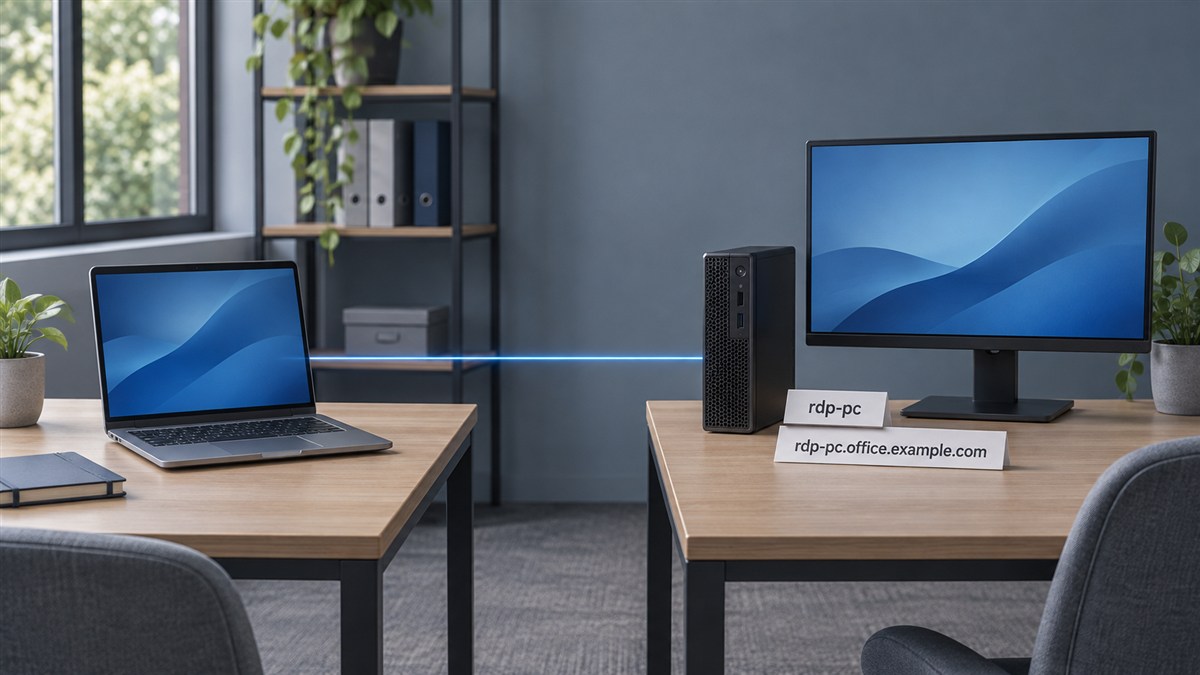
I was trying to RDP to a Windows PC over a site-to-site VPN. I’d entered its fully qualified domain name (FQDN) in Remote Desktop Connection (mstsc.exe) and ticked Use a web account to sign in to the remote computer. Microsoft Entra ID refused the sign-in. Here’s the error as Microsoft documents it. Microsoft’s AADSTS293004 troubleshooting notes
AADSTS293004: The target-device identifier in the request xxx wasn't found in the tenant xxxSetting the primary DNS suffix on the remote PC fixed it. I could then sign in using the same FQDN I’d been typing all along.
Why Entra rejected the full computer name
I was entering rdp-pc.office.example.com, and the device was listed as rdp-pc in Microsoft 365. Both names are anonymised here. The difference mattered because the name in the Computer box has two jobs when you use web-account sign-in. Windows needs to resolve it to the remote PC’s IP address, and Entra needs to match it to a hostname on the device record. Microsoft’s guide to Remote Desktop with Entra authentication
That explains how the full name can resolve across the VPN and still fail at sign-in. A DNS record can point to the right machine while Entra knows the device by its short name. A DNS alias can have the same problem if the alias itself is absent from the Entra device’s hostnames. Microsoft’s explanation of the hostname mismatch
Set the primary DNS suffix on the remote PC
On the remote PC, run ipconfig /all and look for Host Name and Primary DNS Suffix near the top. For rdp-pc.office.example.com, I’d expect a host name of rdp-pc and a primary suffix of office.example.com. The adapter sections farther down can also show a Connection-specific DNS Suffix. The setting you need here is the machine-wide primary suffix. Microsoft’s ipconfig reference
If the remote PC needs a suffix and it’s managed through Group Policy or MDM, check the value there first. The policy can override the local setting. Microsoft’s DNS Client policy reference
For a PC where you manage the suffix locally, use an administrator account and make sure you can get back into the remote PC after the restart.
- On the remote PC, run
sysdm.cpland open Computer Name → Change → More. - Set Primary DNS suffix of this computer to your organisation’s suffix for that PC. In the example, enter
office.example.com. - Save the change and restart the remote PC. Check that Full computer name on the Computer Name tab shows the expected FQDN.
- From the client, retry the FQDN with web-account sign-in still enabled.
Windows uses the Device-Sync scheduled task to add the FQDN to the device’s hostnames attribute. That gives Entra the full name to match at sign-in. Microsoft’s primary DNS suffix workaround
If Remote Desktop still won’t connect
Check DNS and TCP port 3389 from the client
Run these in PowerShell on the client PC with network access through the VPN. Replace the example FQDN with the name you type into Remote Desktop. If the remote PC uses a custom RDP port, substitute it for 3389. Microsoft’s Resolve-DnsName reference · Default Remote Desktop listening port
$computer = 'rdp-pc.office.example.com'
Resolve-DnsName -Name $computer -DnsOnly -NoHostsFile
Test-NetConnection -ComputerName $computer -Port 3389
Compare the DNS result and the RemoteAddress in Test-NetConnection with the remote PC’s IP address. Microsoft’s Test-NetConnection reference
- The name fails to resolve or returns the wrong IP. Check the DNS server the client uses and the record for the remote PC.
- The address is correct and
TcpTestSucceededisFalse. Check the route between the sites, the firewall rules and whether the remote PC is listening for RDP on that port. - The address is correct,
TcpTestSucceededisTrueand sign-in returns the same error. You’ve reached the TCP port. Check which hostname Entra knows for that device.
Try the registered short name
If the short name resolves to the intended PC from the client, try it with web-account sign-in still ticked. If rdp-pc works and rdp-pc.office.example.com gives the error, focus on the hostname Entra has for the device. Keep the Computer field set to a hostname, which this sign-in mode requires. Microsoft’s Remote Desktop single sign-on guide
Check the remote PC’s Entra device record
On the remote PC, run this in a Command Prompt or PowerShell window.
dsregcmd /statusLook for AzureAdJoined : YES under Device State. That covers both Entra-joined and hybrid-joined PCs. If DeviceAuthStatus is available, SUCCESS means the device is present and enabled in Entra. If you find several records with the same display name, use DeviceId and TenantId from the output to make sure you’re checking the right device in the right tenant. Microsoft’s guide to reading dsregcmd /status