Photoshop Lasso draws random diagonal lines on Windows
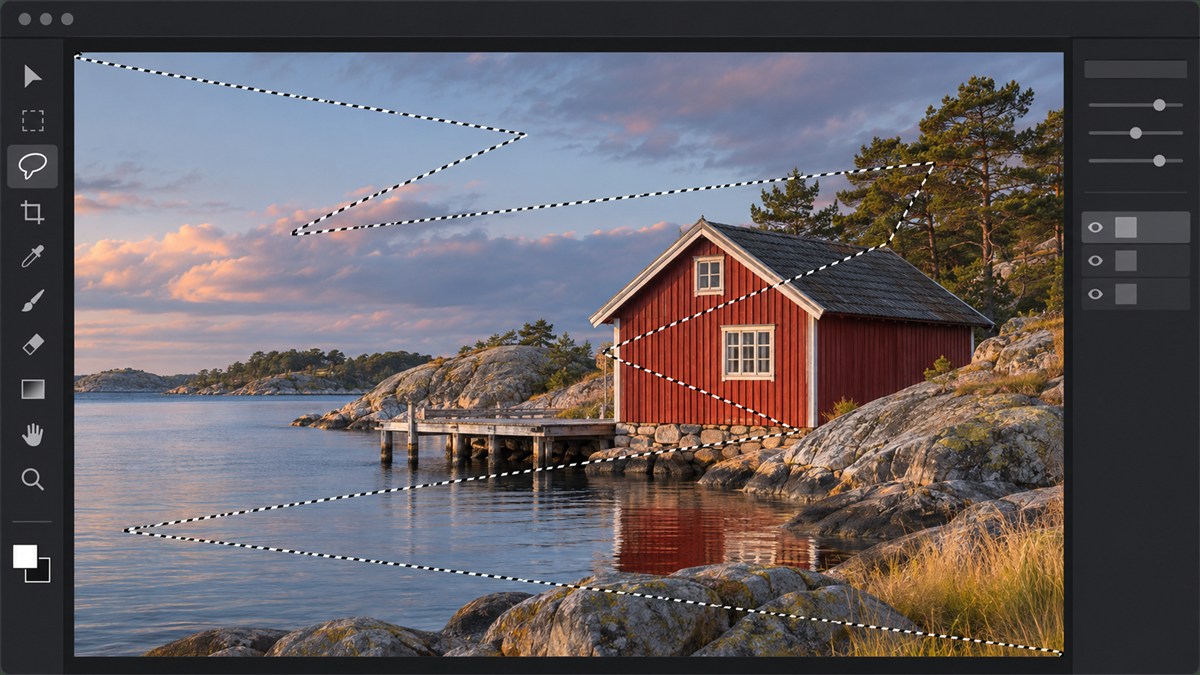
A client reported that Photoshop’s Lasso was sending dotted selection lines diagonally across their photo. They tried a different mouse and saw the same behaviour in both Photoshop 2026 and 2027. The cover illustration shows the kind of outline they saw.
The client confirmed that adding UseSystemStylus 0 to PSUserConfig.txt fixed the problem in Photoshop 2026. They still saw the artefact in Photoshop 2027 after trying the same setting.
Why a pen setting was worth trying with a mouse
In Adobe’s bug tracker, people using a mouse reported similar stray lines with tools such as the Brush and Clone Stamp. The workaround switches Photoshop’s stylus input from Windows Ink to WinTab. A pen setting was an odd place to end up after swapping a mouse. Adobe Community bug report · Adobe’s optional extensions guide
Switch Photoshop 2026 to WinTab with PSUserConfig.txt
-
Close Photoshop. In File Explorer, paste the path below into the address bar and press Enter.
%APPDATA%takes you to your Windows user’s roaming settings folder.%APPDATA%\Adobe\Adobe Photoshop 2026\Adobe Photoshop 2026 Settings -
Open
PSUserConfig.txtin Notepad, or create a plain-text file with that name if it’s missing. Add this line. If the file already has aUseSystemStylusentry, record its current value and edit that entry in place. Keep the other settings in the file.UseSystemStylus 0 -
When creating the file in Notepad, choose All files under Save as type and enter
PSUserConfig.txt. Turn on File name extensions in Explorer to check that the file didn’t end up asPSUserConfig.txt.txt. -
Reopen Photoshop 2026 and try the Lasso again. The setting is specific to the version’s settings folder. Adobe’s configuration-file instructions · Wacom’s WinTab setup guide
If you use a graphics tablet, check pen pressure after the switch. To undo the change, remove the line you added or restore its previous value, then restart Photoshop. Adobe’s tablet support guide
If the lines persist in Photoshop 2027
I’d start by checking which settings folder contains the file. Run this in PowerShell as the Windows user who runs Photoshop. The wildcard also catches files with an extra .txt extension.
Get-ChildItem -LiteralPath "$env:APPDATA\Adobe" -Recurse -File -Filter 'PSUserConfig.txt*' |
    Select-Object -ExpandProperty FullName
Look for PSUserConfig.txt in the settings folder for the version you’re testing. Open it to check that UseSystemStylus 0 is on its own line. If your build offers a WinTab checkbox under Edit → Preferences → Tools, try enabling it and restarting Photoshop. A mouse user in the Adobe thread got their Brush working again that way. Adobe Community’s WinTab preference report
For a separate graphics check, untick Use Graphics Processor under Edit → Preferences → Performance, restart, and repeat the same Lasso action. If the lines disappear, Adobe recommends looking at the GPU and its driver. If the lines persist, restore the previous GPU setting before testing anything else. Adobe’s GPU troubleshooting check